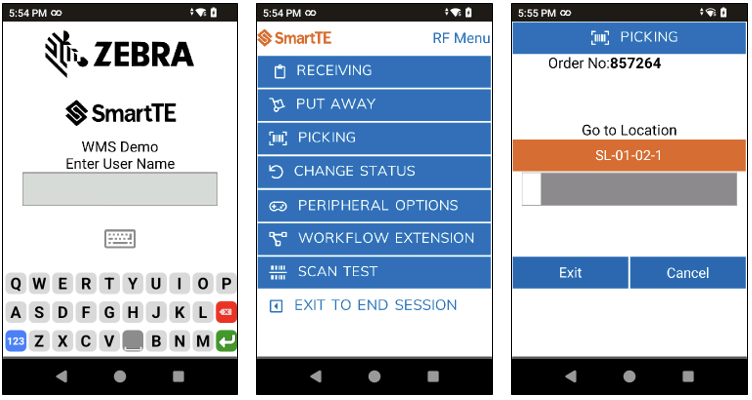
In the tutorials below, we'll show you step-by-step how to set up, configure, and navigate through the demo application using StayLinked SmartTE in a simulated Warehouse Management System (WMS).
These Setup barcodes below are compatible with the latest generation of Zebra mobile devices running Android 11 and up. StayLinked software is already supported on legacy Zebra devices running older operating systems and can be manually loaded if needed. Please contact your local StayLinked representative or our support department for assistance in setting up a demo for an older device.
Step 1: Device Setup
On your device, open the StageNow application and scan the barcodes below. This installs StayLinked SmartTE and Evolve. It will update any versions that may already be loaded and set the device for an optimal demo experience (beeps, vibrations, etc).
Android 13+
Note: Minimum Compatible MX Version: 13.1
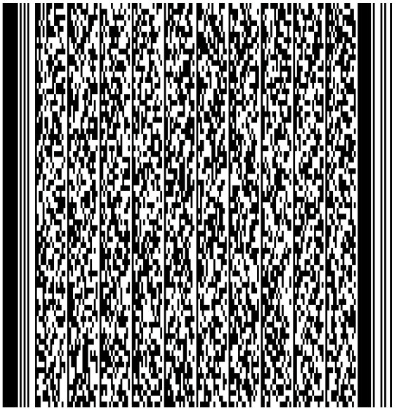
Android 11
Note: Minimum Compatible MX Version: 13.1
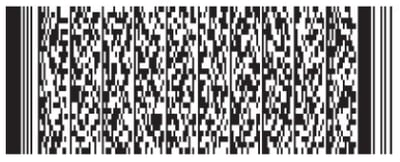
Android 10 (and previous versions)
For more information on how to install the the StayLinked Demo on Zebra devices using Android 10 and previous versions, contact your local StayLinked Representative, or reach out to StayLinked support at support@staylinked.com.
NOTE: Factory Reset barcodes are also provided below to return the device to its original state (if required).
Android 13+ FACTORY RESET
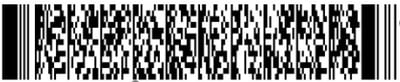
Android 11 FACTORY RESET![]()
SmartTip! If problems arise during staging, verify the device has the most recent LifeGuard patch and is running MX version 13.1 at a minimum and try again.
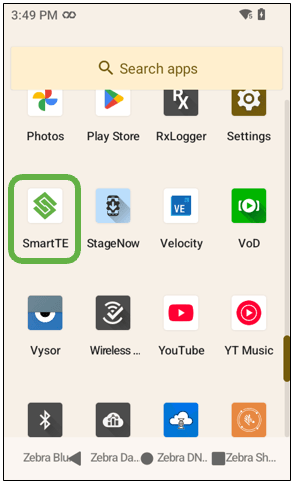
Step 2: Tap the SmartTE icon
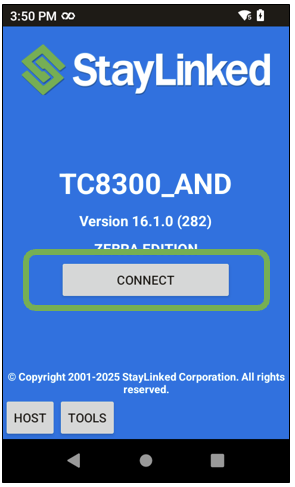
Step 3: Tap the 'CONNECT' button
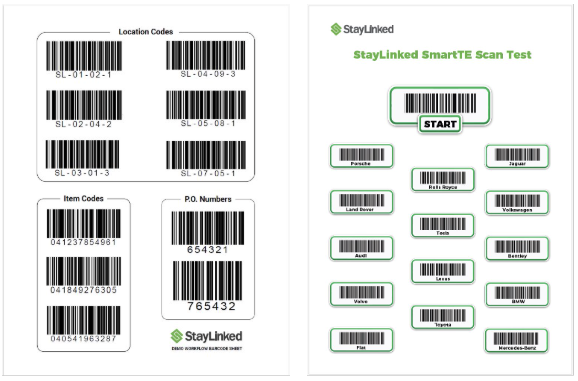
Step 4: Download and Print the Barcode Sheets

The StayLinked WMS Demo provides typical supply chain workflows that highlight features of the StayLinked
solution as well as features of the mobile device in use. Use the on-screen keyboards, hear the beeps, feel
vibration feedback, test scanner performance, try out the onboard camera, and more.
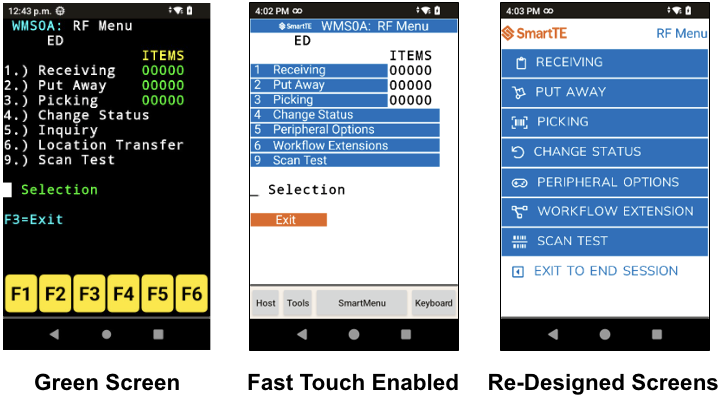
There are three versions of the demo available to choose from:
These run exactly the same Telnet workflows, but demonstrate different levels of enhancement using the features of SmartTE and Evolve.
SmartTip! The Picking module is the most popular go-to for demo.

Barcode Sheets
A physical barcode always provides a superior scanning experience than a barcode displayed ona laptop. For the most positive experience two barcode sheets are available for download. It isalso possible to create barcodes to test different use cases like larger reflective labels for longrange scanning. Simply produce the barcodes using the same values as shown on the WMSscan sheet or the encoding in the chart to simulate these use cases.
NOTE: Depending on the mobile device used, the Picklist scanning features should be enabled to prevent unintended scans.

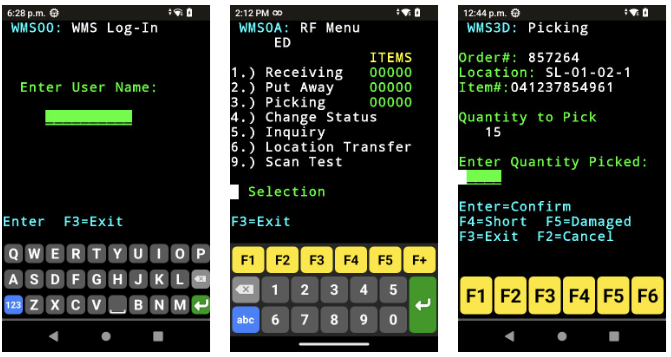
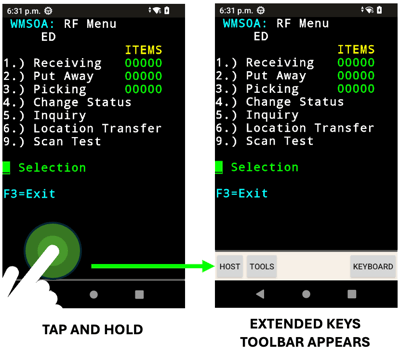
The Green Screen version of the demo represents a typical untouched WMS that is familiar to most companies
running TE today.
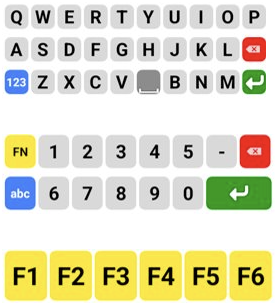
When prompted, scan the appropriate barcode, enter data via on-screen or physical keyboard, or simply press
'ENTER' to advance within the workflow.
Using Regex (Regular Expressions), SmartTE is configured to recognize patterns of text in the WMS. As SmartTE detects these patterns in the workflow, it dynamically turns these into on-screen Tap Spots. In addition to keyboard entry, try tapping the highlighted choice on the touch screen. This is the fastest way to touch-enable a WMS application.
When prompted, scan the appropriate barcode, enter data via on-screen or physical keyboard, press 'ENTER', or press one of the Tap Spots to advance within the workflow.

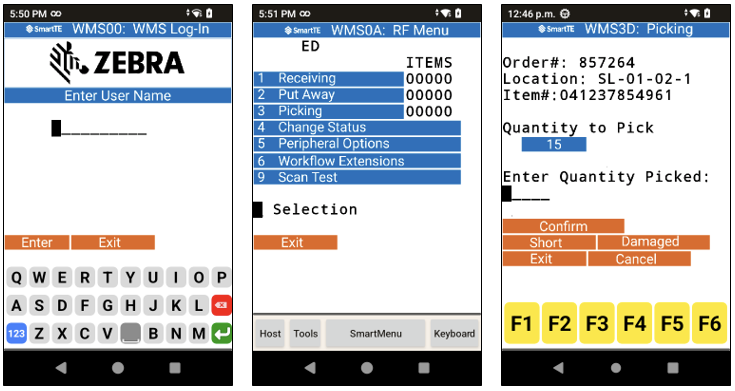
Using the Designer features of SmartTE the WMS application is fully modernized for the most optimal worker experience.
When prompted, scan the appropriate barcode, enter data via on-screen or physical keyboard, press 'ENTER', or press one of the onscreen Graphical Buttons to advance within the workflow.

» Explore the Features
|


|
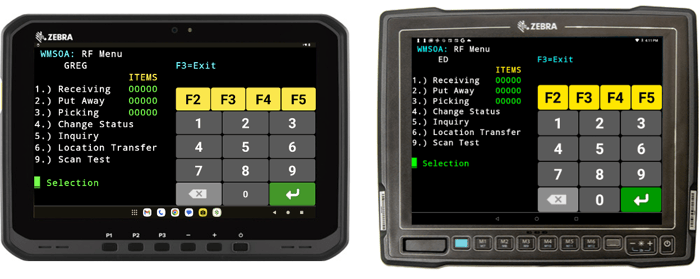
Most portrait WMS screens show data on the top half with keyboard entry on the bottom half. This feature enables rapid conversion of existing portrait screens to landscape format; automatically splitting the existing portrait screens into two halves: data and keyboard side by side.
|
SmartLandscape is incorporated into the demos for the WT series of wearables, the VC series of vehicle mounts, and the ET series of tablets.

IMPORTANT NOTE: It is helpful to set the WT6400 system navigation to gesture navigation during the demo. This prevents the user from inadvertently tapping the Android navigation bar and closing or minimizing the application while they are trying to use it.
|
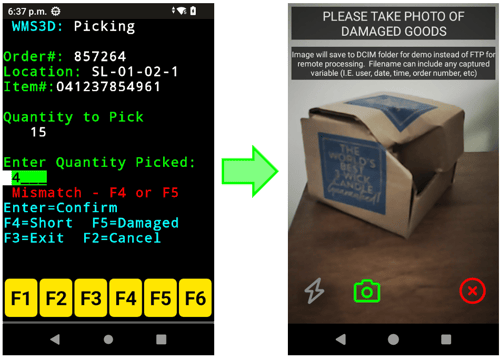
Proof of condition is a growing use case in supply chain operations. As such this is built into the WMS demo. In the ‘Picking’ portion of the WMS demo, when a short count for damaged or missing items is entered, SmartTE triggers the StayLinked Evolve agent to prompt the user to capture a photo. This is easily incorporated into any existing TE application and is supported on all camera-equipped Zebra Android devices.
|

|
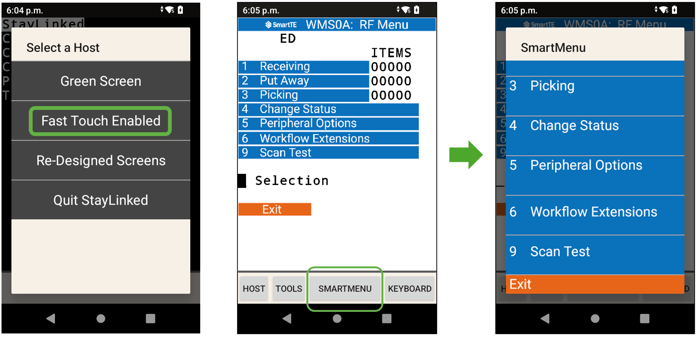
In the Fast Touch Enabled version of the demo, on the RF Menu screen, tap the SMARTMENU button. The SmartMenu feature in SmartTE dynamically displays lists in a large, scrollable format for the user; perfect for small touch screens and gloved operation.

Technology and innovation (feature videos if available). Proven technology partner. Offers great support and guidance. Previous successes and platform credibility. StayLinked expertise and integrity.
©2026 StayLinked Corporation Terms of Use Privacy Policy